The One Last Soul™ — Life Is for the Living — exclusive on-demand streetwear for people who live fully

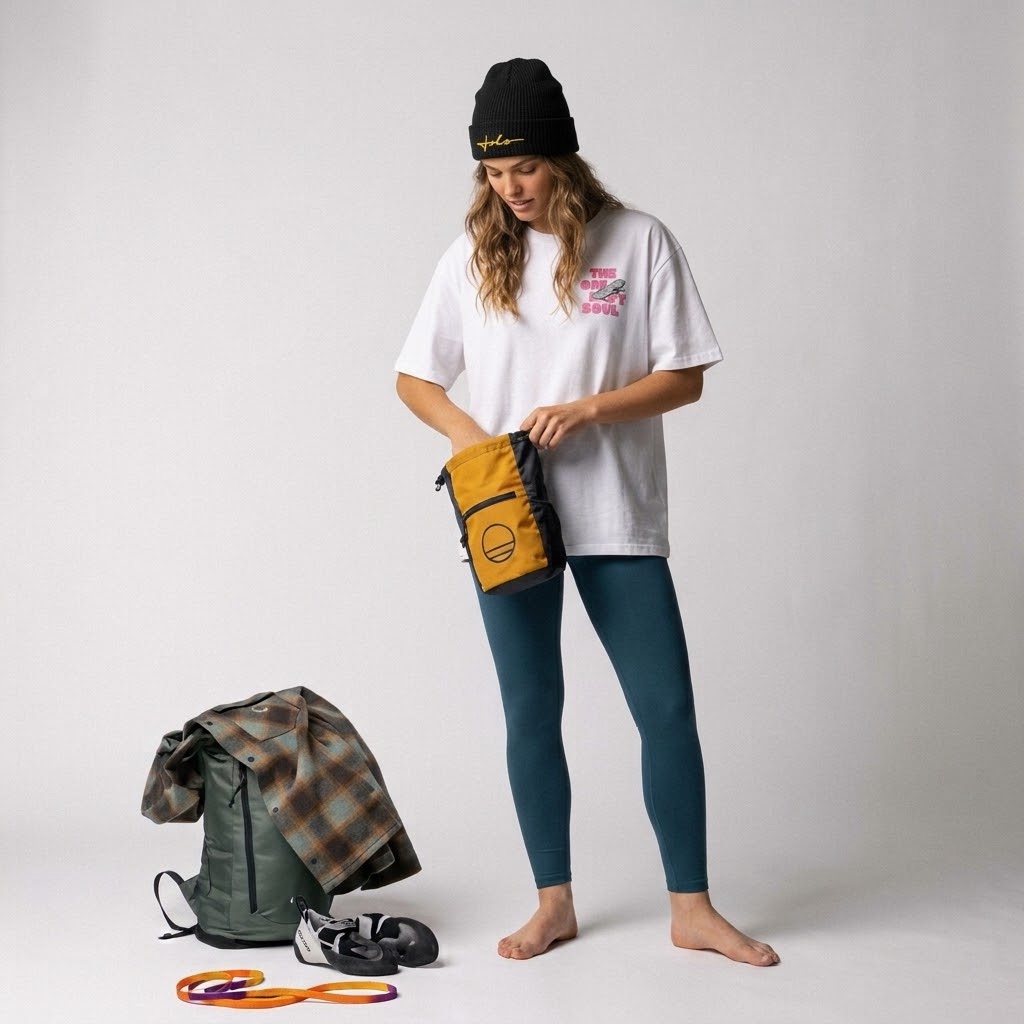
THEONELASTSOUL
TOLS™ / The One Last Soul™ was not born from one thing. Not just the rumble of an engine, not just a deck on concrete, not just salt spray off a breaking wave. It was born from people who love living — the throttle in your hand and the engine humming under you, wind in your face on two wheels, water moving under you while you surf, the quiet second before you jump from a plane, a hard trail that ends in a view that stops you cold. Different ways to live it. One soul behind all of it.
We are not a brand. We do not call ourselves one, and we are not competing with any brand out there. The One Last Soul™ is an exclusive streetwear clothing line for the restless soul — for the ones who step out of their comfort zone, explore, and try to understand what life really means. The journey is the destination. Life Is for the Living is not a slogan to us. It is the whole reason this exists.
That is why we partner with Maggie Doyne and the BlinkNow Foundation. She went far outside her comfort zone, travelled to Nepal, and built a home and a school for children who needed one — an adventure that became a life's work, helping other people live theirs. That is the kind of living we stand for, and 5% of eligible sales go to BlinkNow to support it.
In a world of fast fashion and mass merchandise, we do it the other way: quality over quantity. Every piece of TOLS™ clothing is made on demand — we only make what is ordered. Nothing mass-produced, nothing made just to sit in a warehouse. Less waste, a smaller footprint, and every piece made on purpose, for one person who will actually live in it. Each purchase is intentional and considered, not disposable.
This is our promise. Timeless designs, made to be lived in hard — on the road, in the water, on concrete, on the trail, in the sky. For the one last soul who lives life to the absolute fullest. Welcome to the crew.
The latest pieces, all in one place.
THEONELASTSOUL · Current Drop
Every piece in the current drop, in one place. Tap a product for the full view, tap the heart to save it to Favorite.
Your Saved Pieces
Your favourites live here. Add them to your bag, or tap the heart again to remove them.
THEONELASTSOUL · Sample Sale
Good pieces that cannot be sold as new: returned items that have been checked over, samples that were made along the way, and slightly imperfect pieces with a small flaw noted on each listing. When they are gone, they are gone.
All Sale items are final sale and not eligible for return.
We’re currently between promotions, so our Sale page is temporarily closed. Thanks for visiting—we appreciate your support! Check out our everyday favorites in the meantime.
Thank you so much for your interest in partnering with us and spreading the word about our brand! We aren’t accepting new affiliate applications at the moment, so this page is temporarily locked. We truly appreciate your enthusiasm and continued support—feel free to keep exploring our shop in the meantime.
THEONELASTSOUL Loyalty
Every dollar you spend earns points. Stack them up, climb the tiers, and cash them in for money off your next order — starting with a 50-point signup bonus the moment you join.
Earn 1 point for every $1 you spend in the shop. No codes, no hoops — points land automatically with your order.
Every 100 points turns into a $10 reward you can put toward any order. Earn, save, spend — simple.
Join free and your account starts with 50 points already in it — halfway to your first $10 reward.
THEONELASTSOUL Member · Crew Tier
Welcome to the crew — your 50-point signup bonus is in. That's $5 in reward value already, and 50 points away from your first full $10 reward.
| Tier | How to reach it | Earning |
|---|---|---|
| Crew | Entry — everyone starts here | 1 point per $1 |
| Silver | $75+ spent | 1 point per $1 |
| Gold | $200+ spent | 1 point per $1 |
100 points = $10 reward at every tier.
Enter what you plan to spend and see exactly what it earns.
Join THEONELASTSOUL Loyalty free and your signup bonus is added right away.
Points expire after 12 months. 1 point per $1 spent · 100 points = $10 reward · Tiers: Crew (entry), Silver $75+, Gold $200+.
THEONELASTSOUL Referral
Share your code and you both win: your friend gets $25 off their first order over $150, and you get $25 credit when they order.
STEP 01
Send your personal code FRIEND25 to friends — messages, socials, the group chat, anywhere.
STEP 02
Your friend enters FRIEND25 at checkout and gets $25 off their first order over $150.
STEP 03
Once their order over $150 is placed, $25 credit lands in your account for your next order.
Give $25 / Get $25 applies on orders over $150.
Copy the code and pass it on — every friend who orders over $150 earns you both $25.
THEONELASTSOUL Affiliates
Post it, wear it, talk about it — when your followers shop through your personal code, you earn 15% per sale, with a 20% VIP tier for top performers. Your code also gives your followers 10% off, and you still keep your full 15%.
Earn 15% commission on every sale made through your personal affiliate code or link.
Top-performing affiliates move up to the VIP tier and earn 20% per sale.
Your personal code gives followers 10% off — and your commission stays the full 15%. The discount never eats your cut.
Enter how many sales you expect and the average order value to see what you'd earn at 15% and at the 20% VIP tier.
Create your affiliate account to get your personal code and start earning. Applications are reviewed — admin approval is required before your account goes live.
15% commission on every sale through your link or code. VIP affiliates earn 20%.
10% off with your personal code.
Sign up through the affiliate portal. Every account is checked and approved by us before it goes live.
Through PayPal, to the account on your affiliate profile. Payouts are paid monthly.
In your affiliate portal once you’re approved. Your code is your name in capitals, like JANEDOE.
Admin approval required · 15% per sale · 20% VIP tier · Followers save 10% with your code while you keep the full 15%.
THEONELASTSOUL Gift Cards
The easiest way to pass the culture on: pick an amount, add a name and a note if you like, and check out as usual. Your gift card code is created the moment your order completes — it shows on your confirmation and in My Orders, ready to spend at checkout.
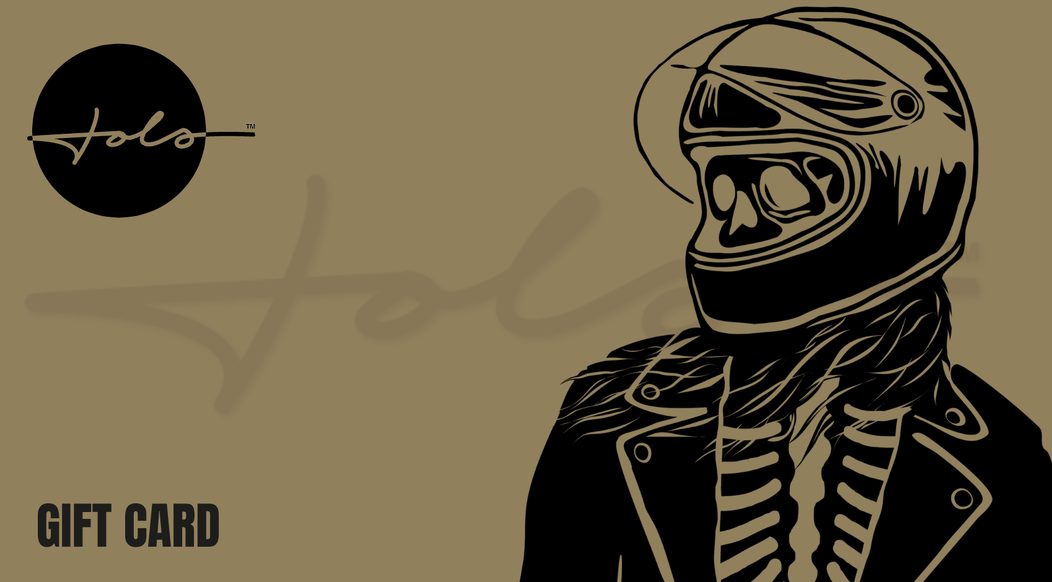
Digital gift card — no shipping fee and no tax on gift cards. The code is issued when your order completes.
Gift cards are final sale and not eligible for return.
STEP 01
Choose one of the preset amounts above, and add it to your bag like any other item.
STEP 02
When your order completes, a unique code — TOLS-XXXX-XXXX — is created for the card. It shows on your confirmation and stays in My Orders.
STEP 03
Enter the code in the gift card field at checkout. The balance comes off the total, and whatever is left stays on the card for next time.
Gift cards are digital — they never add shipping or tax. Balances carry over until the card is fully spent.
THEONELASTSOUL Photo Contest
Bought something from us? Post a photo with it, tag us, then send us the link through the entry form below — you are in the draw. No chasing hashtags: every entry comes to us through the Contact Form, in one place.
STEP 01
Post a photo with your product on Instagram or TikTok, tag @theonelastsoul_ and use the hashtag #OneLastSoul.
STEP 02
Come back here and tap Submit your entry. Send your post link and your order number through the form — you need to be signed in, so every entry comes from a real customer.
STEP 03
One winner is drawn at random every month from the valid entries.
Every entry is checked: your order number must match a real order and your post must tag @theonelastsoul_. The winner is drawn at random from the valid entries and contacted by email.
Send us the post link and your order number — that is the whole entry.
There is no photo contest running right now. Check back soon — when the next contest opens, it will be announced here and on our socials. Feel free to keep exploring the shop in the meantime.
Customer Account
See and update the details on your THEONELASTSOUL account — name, birthday, address and more. Saved changes are used at checkout.
You need to be signed in to view and update your personal information.
Customer Account
Every order you place while signed in shows up here — with tracking once it ships, and the return status for each order.
You need to be signed in to view your order history, tracking and return status.
Customer Account · Loyalty
Your live balance from your own account: the 50-point signup bonus plus 1 point per $1 on your orders. 100 points = a $10 reward.
You need to be signed in to view your points, tier, available rewards and referral credits.
Customer Account
Questions about an order, sizing, returns — anything. Fill this in and send it; your name and email are already filled from your account.
You need to be signed in to use the contact form, so we know who the message is from.
THEONELASTSOUL · News
Life Is for the Living — this is where we share what is happening in the culture: new drops, lookbooks, and the people and places that move with us. No noise, just the stories behind the pieces.
News
Head back to News for the latest from the culture.
THEONELASTSOUL · Help & Policies
Everything you need to know about shopping with THEONELASTSOUL, on one page. Use the table of contents to jump straight to the section you need.
You earn 1 point per $1 spent. Every 100 points turns into a $10 reward you can put toward an order. Joining starts you with a 50-point signup bonus. Tiers are Crew (entry), Silver at $75+ spent, and Gold at $200+ spent. Points expire after 12 months. See your live balance, tier and available rewards in My Rewards after you log in.
Share the code FRIEND25. Your friend gets $25 off their first order over $150, and you get $25 credit when they order — Give $25 / Get $25. Copy the code from the Referral page or from My Rewards.
Tracking appears in My Orders once your order has shipped. If an order has not shipped yet, My Orders will say tracking will appear once it ships — nothing is shown before then.
Returned online purchases are eligible for store credit or exchange only — full refunds are only available with prior authorization before you place your order. Contact us within 7 days of receiving your order to start a return or exchange, or within 24 hours for damaged or defective items. Sale items are final sale and sold “as is” — no returns or exchanges. See the Refund Policy section below for the full details, including the conditions and restocking fees.
Sample Sale pieces are good items that cannot be sold as new, each labelled with its condition: Returned — returned and checked over; Sample — made as a sample along the way; Slightly Imperfect — a small flaw, described in the note on that listing. Each listing shows its condition note and its sample sale price next to the original price.
Tap the heart on any product card or in the product popup. The product is saved to your Favorite page (in the top menu), the heart fills in, and a count shows next to FAVORITE. Tap the heart again to remove it.
Log in and use the Contact Form — from the menu under LOG IN, or from the footer. Fill in the subject and your message and send it; we reply by email.
Add pieces to your bag, open the cart, and check out. You will see your items, shipping and estimated tax before you place the order — the total shown at checkout is the total for that order.
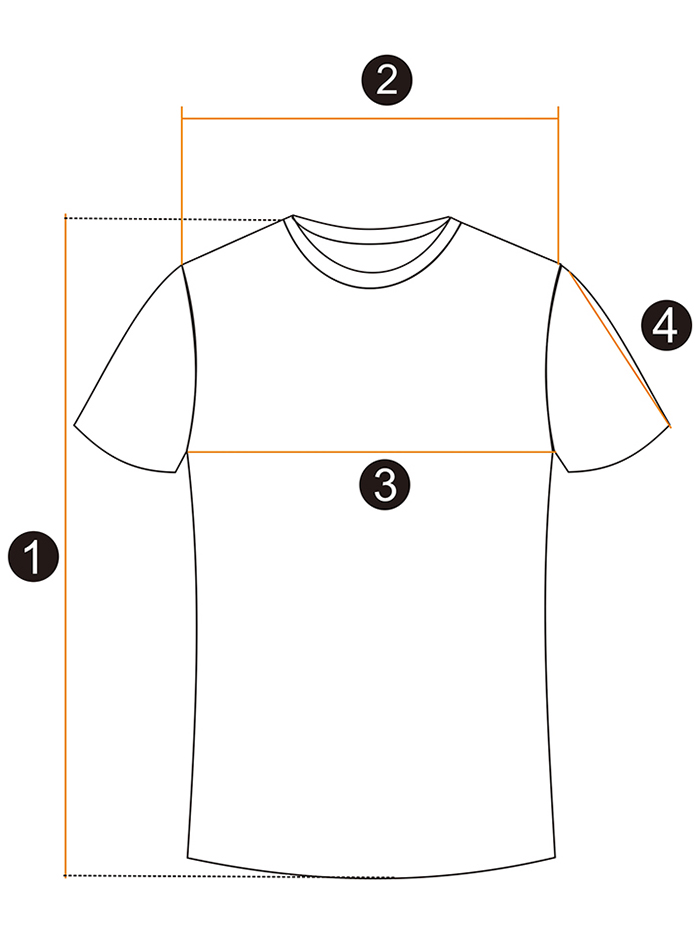
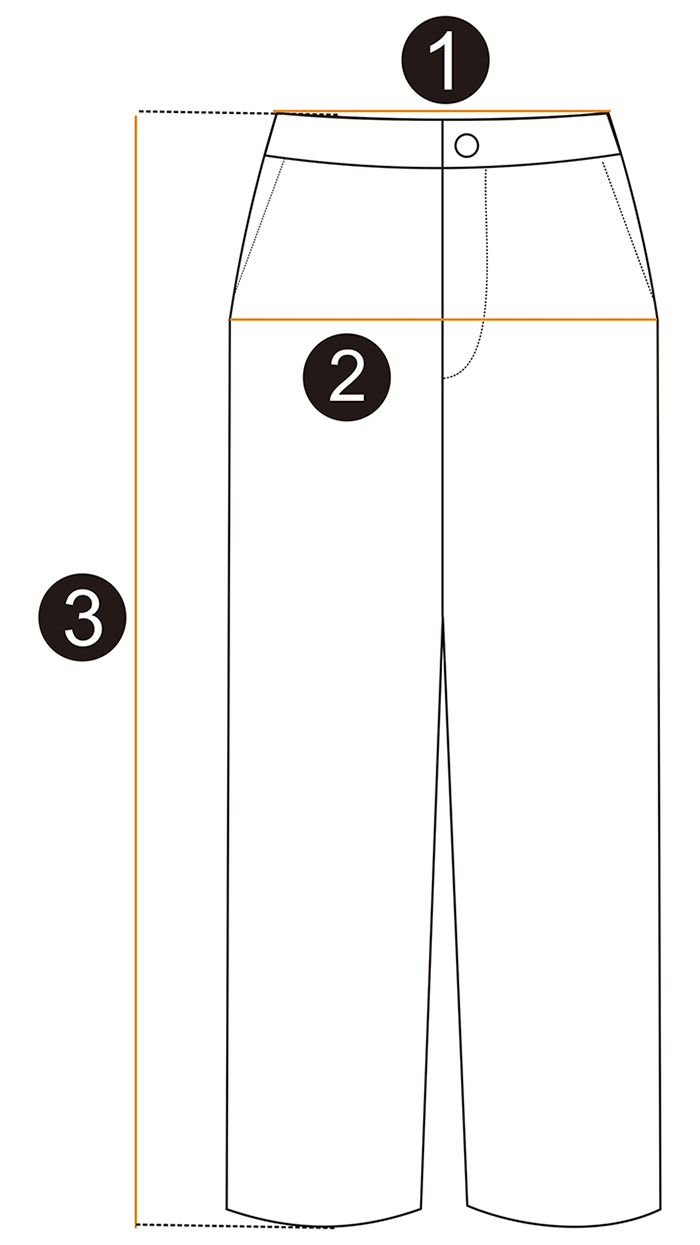
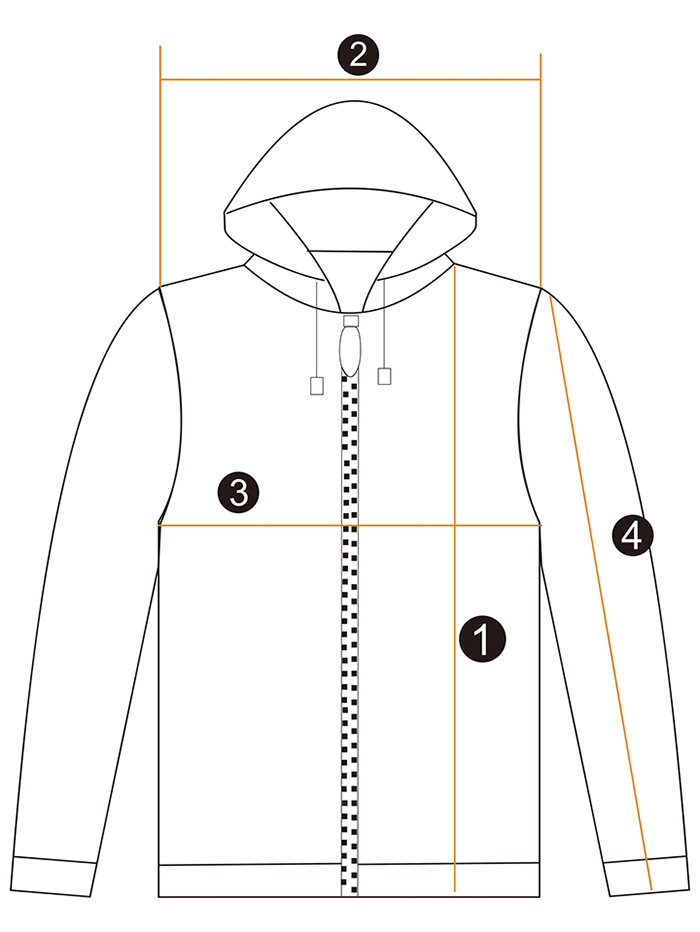
Thank you for supporting our small business and our commitment to sustainable fashion! Because each order is made especially for you as soon as it is placed, we are unable to mass-produce or hold inventory. This allows us to reduce overproduction and promote eco-friendly practices. Please review our return and exchange policy below to ensure a smooth experience.
As a small business, we are unable to cover return shipping costs or provide prepaid shipping labels. Customers are responsible for return shipping fees. We recommend using a trackable shipping method, as we cannot be held responsible for lost return packages.
Please double-check your shipping address at checkout. If you provide an incorrect or incomplete address and the order is shipped, we cannot issue a refund or reship the item. It is the customer’s responsibility to ensure the shipping address is accurate.
↑ Back to topThank you for supporting our small business TOLS™ / The One Last Soul™! We understand that shopping online can sometimes be challenging, and our goal is to ensure you get the perfect fit every time. While we strive for perfection, we also know that things don’t always go as planned. Your satisfaction is our priority, and we’re committed to making your experience with us a positive one.
In this page, you’ll find all the details about our returns and exchanges. Please take a moment to review this information before making your purchase.
At TOLS™ / The One Last Soul™, we are committed to sustainability and supporting small businesses. Our return policy is designed to reflect our dedication to the environment and ethical business practices.
Every single item on our store is made to order. As a result, we do not align with the common ‘fast-fashion’ practices of ordering several different sizes just to ship back the ones that do not fit. Please review our return policy below:
All returned online purchases are eligible for store credit or exchange only. Due to the nature of our products, full refunds are only available with prior authorization before you place your order. If you’re unsure whether an item is eligible for a return or exchange, please contact us before completing your purchase.
Once a full-price order has been shipped, it is only eligible for store credit or exchange.
Sale items are final sale and sold “as is.” No returns or exchanges are accepted for sale items.
Gift cards are final sale and not eligible for return.
To qualify for an exchange or store credit, your item must meet the following criteria:
If your return does not meet these conditions, a 15% restocking fee will apply. This fee will either be deducted from your store credit or charged for exchanges if the item requires:
If your order arrives damaged, defective, or if we made a mistake, please contact us within 24 hours of delivery by logging into your account on our website and submitting clear images of the issue. Include the following in your message:
We will review your request and, if approved, provide instructions for returning the item. Once we receive and inspect the returned item, we will either:
Because each item is made on demand, we cannot guarantee size exchanges. However, if you need a different size, please contact us, and we will do our best to accommodate your request if we have the size in stock. If the size is unavailable, we will be unable to process an exchange.
Please double-check your shipping address at checkout. If you provide an incorrect or incomplete address and the order is shipped, we cannot issue a refund or reship the item. It is the customer’s responsibility to ensure the shipping address is accurate.
If an item is returned in a used or non-original condition, a 15% restocking fee will be deducted from your refund. This fee covers the cost of processing and inspecting the returned item.
Refunds will be processed within 5-7 business days after we receive and inspect the returned item. Please allow additional time for the refund to appear in your account, depending on your payment provider.
If you have any questions about our return and exchange policy, please reach out to us by loggin in. We’re here to help!
Note: This policy is subject to change without notice. Please review it at the time of your purchase.
↑ Back to topTHEONELASTSOUL is for everyone. We want this site to be usable by as many people as possible — however you browse, whatever device you use, and whatever assistive technology you rely on.
We work on the site’s accessibility as an ongoing part of building and improving it: clear headings and labels, readable text, keyboard-friendly controls, and layouts that adapt from phone to desktop. Accessibility is not a one-time job, and we keep improving it as the site grows.
If any part of this site is hard or impossible for you to use, please tell us through the Contact Form (log in, then open Contact Form from the menu under LOG IN or the footer). Tell us which page and what went wrong, and we will do our best to help and to fix it.
↑ Back to topThis policy describes what this site collects in this build, and what it is used for.
To run your orders, your account and your rewards, to answer your messages and support requests, and — for the cookie categories you allow — to understand site usage and assist in our marketing, as described in the cookie banner.
You choose your cookie settings in the cookie banner, and you can change them any time from Cookie Settings in the footer. Strictly Necessary cookies stay on so the shop keeps working. Accepting the banner also records your acceptance of our Terms & Conditions, as the banner states.
Analytics is Google Analytics. It measures product views, carts, checkouts and purchases so we can improve the shop. Marketing is the Meta Pixel, used for ads and remarketing on Facebook and Instagram. Each tool only runs if you allow its category — if you reject it, it does not load and sends nothing.
Souly is the helper chat on this site. He answers questions about products, orders, tracking and returns using information already on this site. If you are signed in, Souly greets you by your first name and can look at your own orders, points and favorites to answer you and to recommend products. This site also counts which products you open, to power those recommendations — that count is kept only on your own device, is never sent to the store, and clearing your browser data clears it. What you type to Souly is not saved and is not sent anywhere; only a message you send through the Contact Form reaches the store.
Use the Contact Form if you have a question about the information on your account. You can see and update your personal information, including birthday and address, yourself in My Account.
↑ Back to topPayments on this store are processed by Helcim. We use Helcim, and Helcim is committed to helping its merchants stay secure and compliant.
Please visit Helcim for more info.
Card details go to Helcim for processing — this store does not store full card numbers.
PHI and payment data are encrypted both at rest (AES-256) and in transit (TLS 1.2+).
Role-based permissions, MFA enforcement, and comprehensive audit trails ensure accountability.
Helcim signs BAAs with healthcare merchants, formalizing our shared commitment to HIPAA compliance.
Sensitive card data never touches your systems, reducing both PCI and HIPAA scope for your practice.
Help & Policies · FAQ’s · Shipping Policy · Refund Policy · Accessibility Statement · Privacy Policy · Security & Compliance
Got questions? Please send messages and inquiries by logging in.
Enter the email on your Google account to continue.
Owner Only · Inside THEONELASTSOUL
Run the shop and the website from right here — no separate software, no second login. Shop CRM covers sales, products, orders and customers. Website Control is a separate page for editing the homepage and every other page.
Sales Total
Orders
Revenue (incl. tax & shipping)
Live Products
Saved changes appear straight away in the homepage carousel and the product popup.
The Current Drop has its own home here — separate from News / Blog. News is stories; the Drop is selling. Everything about the drop is controlled on this tab: whether it is live, its title and intro, exactly which products are in it and in what order, and what the What’s On photo card under the partnership block shows. Press Save Current Drop to publish — it works like every other Control Room save.
Switch a product on to put it in the drop, off to leave it out. Shop products stay in the shop and in the Products tab either way; a drop-only product (tagged below, edited in the Drop Products section under this one) lives only in the drop — switched off here, it shows nowhere until it is back in a drop. Use the arrows to set the order: drop-only pieces always sit at the top of the list and show first on the Drops page, then the shop pieces in your order. The first piece in the drop is the face of the drop — it is the product the What’s On card shows when the highlight below is set to Current Drop.
Drop products are separate from the shop: they show only on the Drops page — never in the shop, its categories or shop search — and they are created and edited right here, with the same full editor as the Products tab (photos with framing, prices, sizes, size chart, stock, out-of-stock sizes, Mark as New, show/hide). Their popup, cart, favorites and checkout work exactly like shop products, and orders and Finance treat them the same. When the Current Drop is switched off above, drop products close completely — they cannot be opened or bought until the drop is on again. Press Save Current Drop below to publish changes made here. Any product can also be moved between the shop and the drop with the Drop only switch in its editor — in the Products tab or here.
The photo card under the partnership block in the What’s On panel (above the footer). Pick one thing for it to show — flip between the two any time and press Save Current Drop to publish:
“Top story (pinned first)” follows the News page order — the pinned post if one is pinned, otherwise the first post. Or pick any visible post to hold the card on that story.
Card preview — photo & label
—
The old “The Current Drop: Five Pieces, Built to Layer” article still sits in News / Blog — that overlap is what made the card confusing. The drop itself now lives here and on the Drops page. Keep the article in News as a story, or hide it so News is stories only — it stays saved in the News / Blog tab either way, nothing is deleted.
Shop products’ names, prices and photos are edited in the Products tab — for them, this tab decides which are in the drop and their order. Drop-only products are edited right here, in the Drop Products section above. This tab also owns the drop’s own words and switches.
Orders placed through this site's checkout (including preview orders from this session) land here. Change a status and the dashboard updates.
Money in and out, worked out for you. Revenue, cost of goods and payment fees update automatically from your orders. Add each product’s cost in the Products tab and log your expenses below — the profit here stays current on its own.
Net profit — This month
$0.00
No orders in this period yet.
Revenue
Cost of Goods
Payment Fees (Estimate)
Expenses
Cancelled orders are left out — the same rule the Dashboard uses. Cost of goods uses each product’s Cost from the Products tab.
Fees are an estimate — your processor’s exact fee changes a little from card to card. The default below is Helcim’s published average online rate. Change it any time and every profit figure on this page updates.
Rent, shipping runs, packaging, ads — anything the business pays for. It comes straight off the profit for its month.
Checking Google Workspace…
Customers
New Inquiries
Signups
Registered customer accounts, with their orders, spend and loyalty standing from the shop’s own records. Loyalty points follow the shop rule: 1 point per $1 spent, plus the signup bonus on the account. Deleting an entry removes the account — its past orders stay in the Orders tab.
1 — Pick a template: hover any card to see it big in the preview. Click a card to use it — words you already typed stay, empty boxes get the template's starter text. 2 — Change any word or photo. 3 — Send: one email, every address in BCC, so customers never see each other's email. Every email carries the BlinkNow line — 5% of eligible sales go to children in Nepal.
Make a shop code — it goes live at checkout at once, and lands in the Code box above.
Route: —
Preview — this is the email, in the shop’s colours:
Every gift card issued at checkout, with its live balance. Cards are read from the shop’s gift card records under your staff session. Deleting a card removes the record — a deleted code can no longer be redeemed.
Pin up to 3 posts. Pinned posts always sit at the top of the News page, in the order shown here — the most recently pinned first. Every other post, including brand-new ones, appears below them. Unpin a post here or on its card below and it drops back into the normal order.
Drag to move · Scroll or pinch to zoom · Double-click to reset
Posting publishes straight away on the News page, below any pinned posts. Pin a post (maximum 3 at a time) to keep it at the top of News until you unpin it — manage pins in the Pinned News setting at the top of this tab. Hide a post to take it off the News page without deleting it.
1 point per $1 spent · 100 points = $10 reward · 50-point signup bonus · Tiers: Crew, Silver $75+, Gold $200+ · Points expire after 12 months.
Give $25 / Get $25 on orders over $150. The code shoppers share is FRIEND25, as shown on the Referral page.
15% per sale, 20% VIP tier. Followers save 10% with an affiliate's code while the affiliate keeps the full 15%. Admin approval required.
Edit the words on these pages in Website Control. Edit the numbers, codes and on/off switches in the Connections tab.
The basics for the whole shop. Saving applies them to the site straight away.
Card processing (Helcim), Apple Pay, Google Pay and PayPal options, the Firebase site mapping, programme settings, shipping and order tracking all live in the Connections tab — one place for every connection and API setting that runs this store.
Every connection, mapping and API setting that runs this store — card processing, the site core, the three programmes, shipping and order tracking. Each block saves on its own. Values are kept for this session in this preview build, and a service only connects for real when the site is live on its backend.
How to read this list: On = the feature is on · Connected = linked to the outside service · Ready or Using defaults = working · Not set up = one step still missing. The words under each section below say the rest.
Status: Not connected. CMS records (customers, inquiries, signups) are kept in this browser only.
Connect from the CMS tab in this Control Room — it signs in with the Owner Google account and stores the CMS lists in that spreadsheet. While connected, the Sheet is the source of truth for the CMS lists.
All checkout payments are processed by Helcim — www.helcim.com. Customers pay by card in the Helcim payment step at checkout, and every order records Helcim as its processor. Payments processed by Helcim.
Status: Demo mode — no live charges. Add your Helcim API token to process live payments.
The token is saved for this session only and is never displayed back in plain text. This preview build does not send live charges.
Status: Apple Pay, Google Pay and PayPal are all ON — they show as payment options at checkout next to Card (Helcim). Turn one off and it disappears from checkout straight away.
Apple Pay and Google Pay run through the store’s Helcim account when live payments are connected — there is no separate Apple or Google account to set up here. PayPal is separate: add your PayPal Client ID below to connect it when the site is live on its backend.
The Client ID is saved for this session only and is never displayed back in plain text. This preview build does not send live charges on any payment method.
Status: Live — theonelastsoul-b1422. Firebase Auth (Google) is enabled and the Control Room sign-in is live on theonelastsoul.web.app.
The domain moves only when the owner approves — MX email records must be preserved so hello@theonelastsoul.com mail keeps working.
Status: On — these values drive the Loyalty page and the rewards in My Rewards. Saving updates both straight away.
Status: On — these values drive the Referral page and the referral section in My Rewards. Saving updates both straight away.
Status: Not connected. The signup link below already sends affiliates to GoAffPro. Add the GoAffPro API key or shop ID when you have them to map the connection.
The API key is saved for this session only and is never displayed back in plain text.
Status: Store defaults. The threshold and fee below are the same ones the cart and checkout use — saving here updates them everywhere.
Status: No provider set. Tracking is entered per order in the Orders tab — carrier name and tracking number fields sit on every order — and it appears in the customer's My Orders once the order is Shipped.
Order status emails — preferences for when the store email is live:
The API key is saved for this session only and is never displayed back in plain text.
Status: Not connected — built-in helper only. The AI Helper floating chat answers with its built-in command engine. When Gemini is connected for this site through Firebase AI Logic, the helper understands free-form requests too — every change still waits for your Apply tap, and the built-in helper quietly takes over whenever Gemini doesn’t answer.
Gemini runs through Firebase AI Logic with App Check switched on: only this registered website can reach it, proven on every call — there is no API key in this page and nothing secret to paste or store here.
This page controls the website itself — the homepage and every other page. Change anything, press Publish Changes, and the live pages update. Reset to Original undoes everything.
The wordmark in the top menu swaps between THEONELASTSOUL and TOLS. Choose whether it changes by whole word or letter by letter, set its colour, and style its text — Bold, Italic and Underline combine freely (for example Bold + Italic + a picked colour all at once). It applies to both menu bars — the full bar at the top and the smaller bar when scrolled — and in both rotation modes. Press Publish Changes to apply, live, with no reload.
This one colour runs the whole site: the LOG IN button and the initials capsule when signed in (same colour, same dark text), Add / Checkout / Publish buttons, the SIGN UP tab, the AI Helper bubble, the dropdown menu’s fade and hover fill, rating stars, prices, links and highlights — and the Redesign page’s rotating word. Change it here and everything follows, in Day and Night. Default is the site lime (#EDF152). Press Publish Changes to apply; Reset to Original restores the lime.
Default: Rotate by Word, Auto colour, Bold OFF, Italic ON, Underline OFF, Logo in menu bar OFF, Wordmark in menu bar ON. Reset to Original restores all of them.
The big photo at the top and the pieces laid over it.
Drag to move · Scroll or pinch to zoom · Double-click to reset
How long each hero photo stays before crossfading to the next. Range 2–30 seconds, default 7. Press Publish Changes to apply — the slideshow restarts at the new timing.
How far the hero photo drifts while parallax is ON. 28 is how the site ships today; higher drifts further, 0 does not drift at all. The drift is always capped so no edge of the photo can show. Press Publish Changes to apply; Reset to Original restores 28.
How big the hero photo grows at full scroll while scroll-triggered zoom is ON — from +10% to +40%, default +20%. The photo only ever grows, so no edge or background gap can show. Press Publish Changes to apply; Reset to Original restores +20%.
Hero Logo — the handwritten “tols” script over the hero photo. The script sits centred over the hero photo, exactly as placed. Its colour, its shadow and the lift on scroll are all set here. Press Publish Changes to apply; Reset to Original restores the defaults.
Default black (#000000), as placed. Pick any colour — the script itself is recoloured, in both Day and Night.
How far the shadow spreads and softens — 0 is a hard edge, 60 is very soft. Default 18, the soft shadow the logo was placed with. It only applies while the shadow above is ON.
Default black. The shadow is always rendered soft and translucent, whatever colour is picked.
This is the menu shoppers drill through on the homepage: Men / Woman / Kids, then a sub-menu (TOP, BOTTOM, ACC), then a type (TEE, HOODIE, JACKET…). Rename any item, move it up or down, remove it, or add your own — under each department separately. Renaming never breaks a product: every item keeps its own internal ID, and each product’s place is set with the Menu type dropdown on its card in the Products tab. Removing the last copy of a type sends its products back to showing at the sub-menu landing level. Press Publish Changes to apply; Reset to Original restores the menu as it shipped.
The SIGN UP tab on the right edge of the hero slides this panel open. Change the photo, the words, the discount or the code here and the panel and checkout update together — the code a visitor is given in the panel is the same code that works at checkout. Press Publish Changes to apply; Reset to Original restores the defaults.
Drag to move · Scroll or pinch to zoom · Double-click to reset
Emails entered in the panel land in the CMS tab under Signups — Promo, with the date and the code they were given.
The giant word above the footer scrolls right to left as a seamless marquee over the hero photo — the loop repeats whatever text is set. Speed is seconds per full loop: lower is faster (range 5–120, default 30). Colour: Auto = white in both themes (the band is transparent over the darkened hero photo); a picked colour wins in both themes. Press Publish Changes to apply; Reset to Original restores Auto.
The small line repeats whatever text is set across the line, at its own speed — it no longer follows the giant word's speed. Leave the text empty and it falls back to TOLS. Speed is seconds per full loop: lower is faster (range 5–120, default 30). Press Publish Changes to apply; Reset to Original restores ON, TOLS and 30.
The What's On section sits directly above the footer on the homepage. The partnership block leads the panel, above the drop rows. Edit the intro lines, the partnership block and each drop row, hide a row to take it off the section, then press Publish Changes.
The partnership block always carries this photo on its right side. Leave the field empty and the site’s pouch photo is used instead, so the right side is never empty. Press Publish Changes to apply.
The “OUR PARTNERSHIP” eyebrow and the blinknow.org link under the partnership text are fixed — the link always points to https://blinknow.org and opens in a new tab.
| Page | What you can control | |
|---|---|---|
| Homepage | On/off switch above, hero photo, hero slideshow timing, sections on/off, button & tab words | |
| Shopping | On/off switch above — carousel, product popup, cart & checkout | |
| Loyalty | Heading, intro text, join button, page images, sections on/off | |
| Referral | Heading, intro text, page images, steps on/off | |
| Affiliate Programme | Heading, intro text, signup button, page images, calculator on/off | |
| Gift Card | Heading, intro text, denominations list | |
| Photo Contest | On/off switch above — prize, draw & hashtag words in the Photo Contest Page section below | |
| Footer | About text, copyright line, newsletter / Footer Update Link / socials on/off | |
| Product Popup | Shipping line text, product details on/off | |
| Sample Sale | On/off switch above — items are managed in Products with the Sample Sale flag, condition & sample price | |
| About / Drops / Favorite | On/off switches above — About text, Drops catalogue & customer favourites | |
| Help & Policies | On/off switch above — FAQ’s page images, plus Shipping, Refund, Accessibility & Privacy on one page | |
| Contact Form | Page images above the heading — the form itself stays fixed | |
| News | On/off switch above, heading & intro text below — posts managed in the News / Blog tab | |
| Website Redesign | Headline & message visitors see when a page is off or Redesign Mode is on |
Or use the + Add image tile above to upload from your device. Maximum 4 images — press Publish Changes to update the live About page.
Manage the items themselves in the Products tab — turn on the Sample Sale flag on a product, set its condition (Returned / Sample / Slightly Imperfect), its condition note and its sample sale price.
Or use the + Add image tile above to upload from your device. Maximum 4 images — press Publish Changes to update the live Loyalty page.
Or use the + Add image tile above to upload from your device. Maximum 4 images — press Publish Changes to update the live Referral page.
Or use the + Add image tile above to upload from your device. Maximum 4 images — press Publish Changes to update the live Affiliate Programme page.
Or use the + Add image tile above to upload from your device. Maximum 4 images — press Publish Changes to update the live FAQ’s heading strip.
The six sections below the strip — FAQ’s, Shipping, Refund, Accessibility, Privacy and Security & Compliance — stay exactly as they are; this section controls only the photos above the FAQ’s heading.
Or use the + Add image tile above to upload from your device. Maximum 4 images — press Publish Changes to update the live Contact page.
This section controls only the photos above the Contact Form heading — the form itself (name, email, subject and message) stays exactly as it is.
Denominations are the preset amounts on the Gift Cards page — shoppers pick one of these amounts. Each must be between $5 and $500; anything outside that range is left out when you publish.
Entries arrive through the Contact Form with the subject “Photo Contest” and land in CMS → Inquiries — Contact Form, marked as contest entries. Only signed-in customers can enter.
Manage the posts themselves in the News / Blog tab of the Control Room.
Shopping covers the product carousel on the homepage, the product popup, the cart and checkout.
The popup's shipping line is edited in the Product Popup section below. The words inside the popup — including the bullet list under Product Details — are edited per product in the Products tab.
From 1 to 60 minutes — default 10. Typing in checkout or any form counts as activity, so nobody is signed out mid-typing. Press Publish Changes to apply; turn Auto log off OFF above and no auto sign-out happens at all.
Admin and Developer accounts are never logged off automatically.
Use these rows to link other websites, or a blog post inside this site, each with a short text — or anything else you want to point people to.
Every row in the Footer Update Link list, in the order it shows in the footer. The Title and the Short text are plain text — type them any way you like. The Link is optional: paste any web address, or a page on this site — #shop, #drops, #news, #help-faq. When a row has a link, both the title and the short text in the footer act as that link, with the same look as plain rows. Turn a row off to hide it without deleting it, move rows with the arrows, delete with Delete row. Press Publish Changes to apply.
Turn a link off and it disappears from the footer. Rename it in its Label field. Internal page links keep their page destination — their URL field shows that destination; external links use the URL you enter. Press Publish Changes to apply.
Turn an icon off and it disappears from the footer. The URL is where the icon goes when tapped. Press Publish Changes to apply.
When a page is OFF, visitors who open it see the Website Redesign page instead. Press Publish Changes to apply. You can always come back here to switch a page back on.
Visitors see this page whenever a page above is switched OFF — and across the whole site while Redesign Mode is ON.
The rotating word below is added after the fixed line, with a full stop after it — the headline reads “TOLS IS PREPARING SOMETHING” + “EXCITING.” The name on the top line keeps its T still and spells the rest in letter by letter — TOLS ↔ THE ONE LAST SOUL — looping.
The rotating word’s colour is the Site accent colour — the one colour behind every button on the site, set at the top of the Menu Wordmark section above. Change it there and this word follows.
Press Publish Changes to apply. Turning it OFF opens the store to the public right away; turning it back ON covers the store again. The Control Room always stays open to you either way.
Publishing applies your changes to the live pages for this session, straight away.
